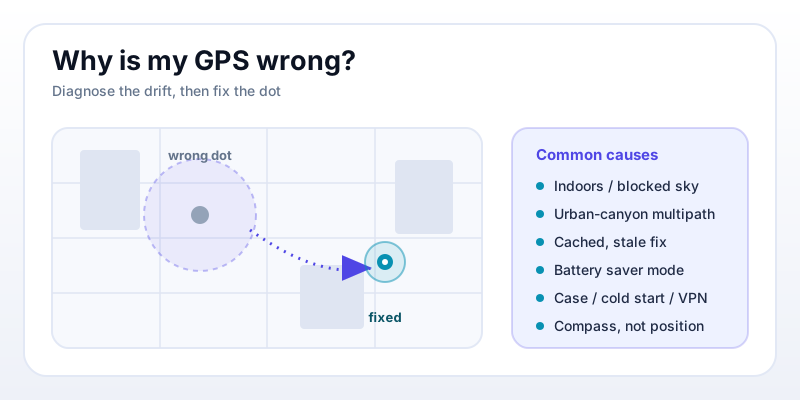
The blue dot jumps across the street, lands in the building next door, or insists you're standing in a river. A wrong GPS location is almost never a broken phone — it's one of a handful of fixable causes, and once you can name which one, the fix is usually quick. Here are the nine most common reasons your dot is wrong, what each looks like, and how to clear it, plus a 60-second test to confirm.
First, is it actually wrong? Read the accuracy circle
Before you troubleshoot anything, check the faint circle around the dot. That circle is your phone's confidence estimate — "you're probably somewhere in here." A tight circle with a misplaced dot is a real error worth chasing. A huge circle means the phone already knows the fix is loose; the cure there is better conditions, not settings.
So the very first move is to look at the reported accuracy number. If it says ±5 m and you're clearly 40 meters away, that's a genuine fault. If it says ±50 m, the phone isn't "wrong" so much as unsure — you just need a better sky view. You can see this number live on the GPS accuracy test; keep it open in another tab as you work through the causes below and watch the radius respond.
The 9 causes, at a glance
Most wrong-location complaints map to one of these. Skim the table, find the symptom that matches yours, then jump to the section for the fix.
| # | Cause | What it looks like |
|---|---|---|
| 1 | You're indoors | Dot snaps to a nearby road or guesses your block |
| 2 | Urban-canyon multipath | Dot lands across the street or one block over downtown |
| 3 | Cached / stale fix | Dot shows your last location, not your current one |
| 4 | Battery saver / low-power mode | Dot updates slowly or freezes; accuracy stays loose |
| 5 | Location set to "device only" | Slow, rough fixes; no Wi-Fi assist near buildings |
| 6 | A thick case or your own hand | Consistently weak signal, drifting dot |
| 7 | Cold start after travel or airplane mode | First fix wildly off, then slowly corrects |
| 8 | A VPN or fake-location app | Dot in another city or country entirely |
| 9 | Compass, not position, is wrong | Dot is right; the direction arrow points the wrong way |
Causes 1-3: blocked sky, bounced signals, and stale dots
1. You're indoors (or under a roof)
Satellite signals are faint, and a roof absorbs most of them. Indoors, your phone usually stops listening to satellites and switches to Wi-Fi and cell-tower estimation — handy for "which building," useless for "which room." The dot often snaps to the nearest mapped road or the center of your block.
Fix: step outside, or at least near a window with open sky. There is no setting that makes satellites punch through a concrete roof. If you only need rough position indoors, make sure Wi-Fi is on even when you're not connected — the phone uses nearby networks as landmarks.
2. Urban-canyon multipath
Downtown, signals ricochet off glass and concrete before reaching you. Your phone times that longer, reflected path and places you where the bounce came from — typically across the street or a block over. This is the single hardest error to beat because the signal is arriving, just by the wrong route.
Fix: move toward the more open side of the street, an intersection, or a plaza so the phone has a few direct lines to the sky. Stand still for a few seconds; a moving phone surrounded by reflections is a much harder problem. Newer dual-frequency phones reject these reflections far better, which is why two phones side by side can disagree downtown.
3. A cached or stale fix
To feel instant, apps often show your last known location the moment they open, then update once a fresh fix arrives. If something interrupts that update, you're left looking at where you were minutes ago — a classic "it says I'm at home but I'm at work" symptom.
Fix: give the app a moment and watch for the dot to jump and the accuracy circle to tighten. If it never refreshes, toggle location off and back on, or close and reopen the app to force a new request. A quick way to prove you have a live fix rather than a cached one: open what are my coordinates and confirm the numbers actually change as you walk a few steps.
Causes 4-6: power saving, location mode, and physical blockage
4. Battery saver is throttling location
Low-power and battery-saver modes deliberately slow down or pause location updates to save energy. The result is a dot that lags behind you, freezes, or refuses to tighten — easy to mistake for a broken GPS.
Fix: turn off battery saver while you actually need accurate location, and make sure the app you're using has background location permission and isn't being put to sleep by aggressive battery optimization. Re-enable saver mode afterward.
5. Location accuracy is set to "device only"
Phones offer a high-accuracy mode that fuses GPS with Wi-Fi and mobile networks, and a "device only" / GPS-only mode that uses satellites alone. Device-only sounds purer, but it fixes slower and gets no help near buildings — exactly when you need it most.
Fix: turn on high-accuracy or "precise" location.
- Android: Settings → Location → Location services → Google Location Accuracy (turn on "Improve Location Accuracy").
- iPhone: Settings → Privacy & Security → Location Services → on; then per app, enable "Precise Location."
6. A thick case, mount, or your own hand
The GPS antenna sits near the top of most phones. A metal-backed case, a magnetic car mount, a wallet folio, or simply cupping the phone in your palm can attenuate the already-faint signal enough to loosen the fix and make the dot drift.
Fix: hold the phone face-up and flat, away from your body, with the top edge unobstructed. If accuracy snaps tighter the moment you take it out of a case or off a metal mount, you've found your culprit.
Causes 7-9: cold starts, fake locations, and the compass trap
7. A cold start after travel or airplane mode
A phone that's been off, in airplane mode, or flown hundreds of miles has stale satellite data. Its first fix can be wildly off because it's effectively guessing which satellites are overhead, then it corrects as fresh data downloads — usually within a minute or two of clear sky.
Fix: step outside, hold still, and give it 30-90 seconds. Don't judge the position until the accuracy circle has settled. If it's stuck, toggle airplane mode on and off, or restart, to force a clean re-acquisition.
8. A VPN or fake-location app
If your dot is in another city or country entirely — not a few meters off — the cause usually isn't GPS at all. A VPN changes your IP-based location, which some apps fall back on, and "mock location" / spoofing apps deliberately override the real fix.
Fix: disconnect the VPN and check again. On Android, look under Developer Options for a "Select mock location app" setting and clear it. Remove any GPS-spoofing apps you installed for games or testing.
9. The compass is wrong, not the position
This one fools almost everyone. If the dot is sitting in the right place but the direction it's "facing" points the wrong way, your position is fine — it's the magnetometer (compass) that's confused, often by a magnet, speaker, or nearby metal.
Fix: wave the phone in a slow figure-eight a few times to recalibrate the compass, and move away from magnetic mounts and metal surfaces. No location setting will help, because nothing is wrong with your location.
A 60-second accuracy test to confirm the fix
Once you've addressed the likely cause, don't just trust that it worked — measure it. Here's a quick, repeatable check:
- Step into the open. Get clear sky overhead, away from walls and tree cover, and take the phone out of any case or mount.
- Open the GPS accuracy test. Hold the phone flat and face-up, and stand still.
- Watch the accuracy number settle. Give it 30-60 seconds. Under open sky it should drop into the single-digit-to-low-teens metres range and stop fluctuating wildly.
- Compare against a known point. Stand on something you can identify on a map — a specific corner, doorway, or path junction.
- Read your coordinates. Open what are my coordinates and check the position against where you're actually standing. A few meters off is normal and healthy; tens of meters means a cause above is still in play.
If you want a second reference point, use drop a pin to mark the exact spot you're standing on the map, then compare its coordinates to your live reading. The gap between the two is your real-world error in plain numbers — far more trustworthy than eyeballing a dot.
When it's physics, not a setting
Run through the nine causes and most wrong dots resolve. But know the limits: indoors, in a tunnel, in deep forest, or in a steel-and-glass canyon, accuracy is constrained no matter what you tap. There, step somewhere with more open sky rather than toggling settings. And remember the difference between a wrong fix (dot in the wrong place, circle tight) and a loose fix (dot roughly right, circle wide) — they have different cures, and the accuracy circle tells you which you've got.
Found your culprit? Confirm with the GPS accuracy test, then grab a clean position from what are my coordinates to verify the dot lands where you stand. For what that ± number really means, see how accurate GPS is.